
Cat Clapping GIF vs Video: Choose a Reaction Loop or a Full Story
Compare a silent cat clapping GIF with a video that keeps the scene and sound. Learn what our generator exports and how to plan a clean reaction loop.
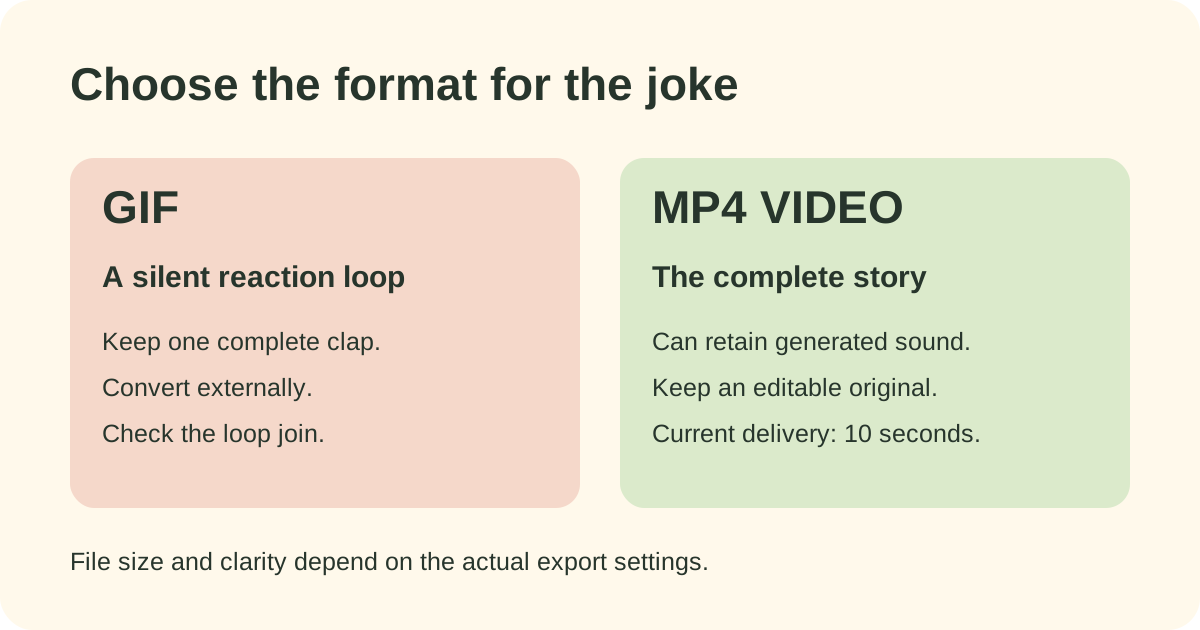
A cat clapping GIF and a cat clapping video can show the same gesture, but they serve different jobs. A GIF is useful when you want a quick, silent reaction that repeats. A video is the better starting point when the clap sound, the setup or the final handshake matters.
Cat Clapping currently delivers a 10-second MP4 video, not a built-in GIF export. You can generate your own scene, download it and convert a selected excerpt in an external editor. Keeping the MP4 original gives you the option to share the complete story later.
Compare the formats before you convert
| Question | Animated GIF | MP4 video |
|---|---|---|
| Will I hear the clap? | No audio track in the GIF file | Can retain the generated sound |
| What is it best for? | A short, silent reaction loop | A complete scene or an editable original |
| Does it repeat? | Can be exported to loop | Playback depends on the player or app |
| What does our generator deliver? | Requires external conversion | A 10-second downloadable video |
GIF stores a limited colour palette, which can make subtle fur and background gradients look rougher. Video codecs compress moving footage differently. A GIF is therefore not automatically the smaller or clearer file: dimensions, frame rate, excerpt length and export settings all matter. These are format properties, not measured size claims about your particular export. MDN's image-format guide and video-codec guide explain the underlying tradeoffs.
Choose a GIF when the motion is the whole joke
A short loop works well when a viewer can understand the reaction immediately: the cat's hands approach, meet, separate and return to a similar position. The caption supplies the situation. The repeated clap supplies the response.
Avoid squeezing the entire story into a tiny loop. A treat, shush and handshake may be clear in a 10-second video but confusing when repeated without context. Start by watching the full result and identifying a complete clap cycle. Do not assume that an arbitrary one-second cut will show both contact and release.
This site does not host a library of other creators' GIFs or overlays. If you need a ready-made licensed reaction asset, check the rights and rules of the source where you obtain it. A downloaded file is not itself permission to republish someone else's work.
Choose video when the sound or ending matters
The full story gives the applause a reason. A treat begins the exchange, the shush creates the pause, and the handshake finishes the scene. Native generated sound can help connect those moments. Converting to GIF removes the audio and may also remove the context if you keep only the applause.
This Both photos example is our own generated output. It shows how a pet photo and an adult portrait can guide the cast in a complete scene. Use the player to compare the story with the short reaction you might extract; no third-party footage is embedded here.
For a social-video post, start from the MP4 original and inspect the destination's current upload options. Some apps present a “GIF” as a short video internally, so check the file or upload requirement rather than relying on the button label. There is no single size or frame-rate setting that suits every destination.
A practical workflow for a clean reaction loop
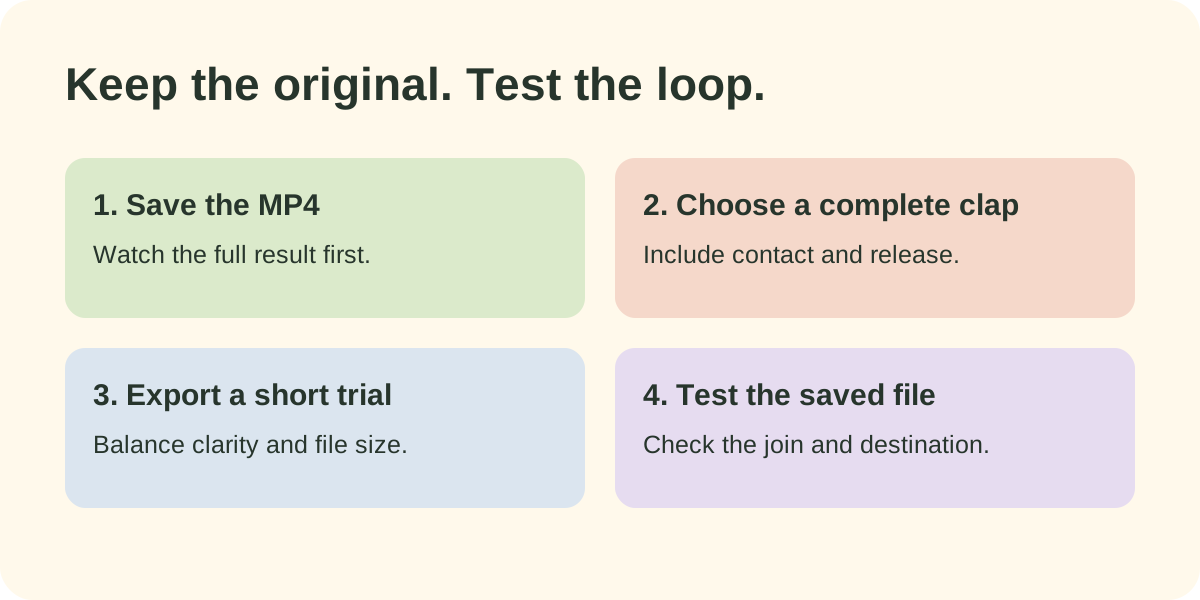
Keep the original, then judge the converted file on the device where you plan to use it.
- Save the original MP4. Play it in full before editing. Check the cast, motion, hands and sound; conversion will not repair an awkward generation.
- Choose the clap rather than a timestamp. In your editor, find the hands moving together and apart. Set the start and end so the loop does not jump abruptly between unrelated poses.
- Export a small trial. Use your editor's GIF option and begin with a short excerpt. Reduce dimensions or frame rate only as far as the gesture remains readable. Compare the actual files rather than assuming a format guarantees a smaller download.
- Test the saved file. Open the GIF outside the editor, inspect the join between repetitions and upload it to the intended destination. Check colour, caption legibility and whether the destination accepts it as expected.
If a GIF looks grainy or loses the expression, retain a short MP4 instead. If the joke needs the clap sound, share video. If the loop works silently and the destination accepts it, the GIF can be a useful reaction version alongside your full original.
Start with your own cat
Open the generator and choose Pet photo, Person photo or Both photos. The current stories are 10 seconds; published examples measure 768 × 1344 pixels. A generated result may change faces, fur or hands, so review it before spending time on the edit.
Registration is free. Generating uses an account allowance; the pricing page lists the current packs and checkout status. For help choosing the cast, read the casting guide. For the meaning behind the reaction, read the cat clapping meme explained.
Frequently asked questions
Should I use a cat clapping GIF or a video?
Choose a GIF for a short silent reaction loop in a destination that accepts GIF files. Choose a video when you want the complete scene, generated sound or an editable original.
Does an animated GIF keep the clap sound?
No. A GIF file contains image frames, not an audio track. Keep or share the MP4 video if the sound is part of the joke.
Can Cat Clapping export a GIF directly?
The current generator delivers a 10-second MP4 video. To create a GIF, download your video and convert a selected excerpt with a separate editor.
Can I make the reaction with my own cat?
Yes. Pet photo personalizes the animal role, and Both photos accepts an adult portrait plus a pet photo. Generate and review your own video before choosing an excerpt to convert.