
How to Make a Cat Clapping AI Video: Photo to Full Story
Make a personalized 10-second cat clapping story with CatClapping. Choose your cast, prepare photos, generate, review and download.
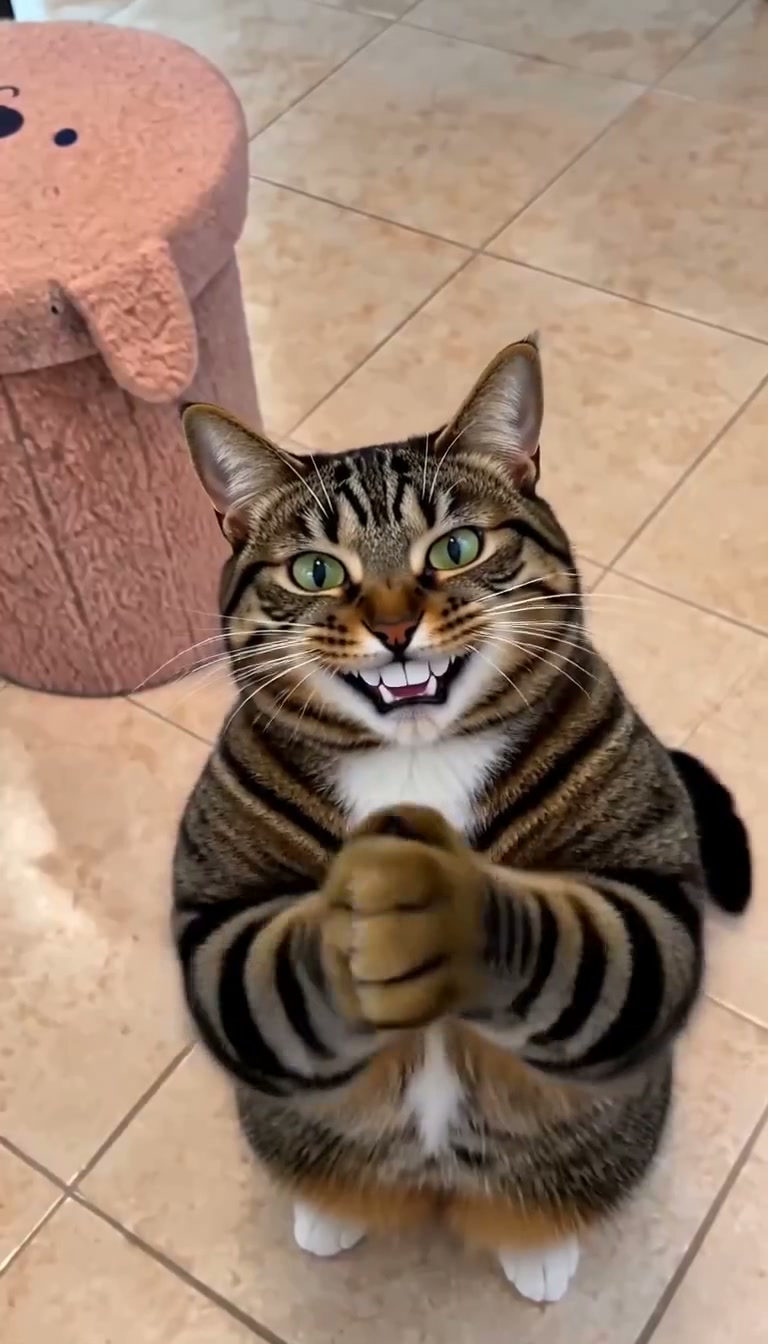
Give your cat a starring role in an outrageously expressive little comedy. CatClapping makes the full story the centerpiece: a treat, a shush, a slow clap and a handshake, brought together in one 10-second video with native generated sound.
You do not need to film your cat performing tricks. Start with a clear photo, choose who appears in the story and let the guided recipe handle the sequence. Here is the complete route from a photo on your phone to a downloaded clip.
Before you begin
Have one sharp pet photo ready. If you want to personalize the adult role too, prepare a separate photo of one adult person. Use photos you own or have permission to use. A well-lit, straightforward image is a stronger starting point than an extreme filter or a crowded group shot.
The current output is a 10-second, 768 × 1344 portrait video. Generation creates new motion and imagery; appearance can vary. A great input helps the model, and a full-video review tells you whether this particular take works.
Step 1: choose the cast that fits your idea
Open the CatClapping studio. Choose Pet photo to personalize your pet and keep the reference adult appearance. Choose Person photo to personalize one adult while keeping the reference black-cat appearance. Choose Both photos to guide both roles with separate images.
This is one of CatClapping's outstanding strengths. You can make a personal clip even when you only have one useful photo. You do not have to invent a second identity or abandon the full story. Read the casting guide if you are deciding between modes.
Step 2: add the photos to the right slots
Put the pet in the pet slot and the adult in the person slot. In Both photos mode, two separate images give each role a clear job. A combined selfie with a cat is less helpful than two clean individual references.
For the pet, show the face, chest and front legs, with breathing room around the body. For the adult, choose a visible face in even light. Check the preview before continuing. If you picked the wrong file, replace it now.
Our strongest photo rule: clarity wins. Recognizable markings, open eyes and an unobstructed outline give the model a better starting point. More detailed advice is in How to Choose a Cat Photo for AI Video.
Step 3: review your selection and choose a pack
The studio lets you prepare the cast before purchasing. Review the selected mode and the photos, then choose a one-time pack if you need video allowances. Current packs contain one, three or five videos; there is no automatic renewal.
Sign in when prompted so the purchase and completed work belong to your account. Check the pricing page for currently available checkout methods. When checkout is available, review its final amount before paying. The pricing guide explains the pack totals and per-video arithmetic.
Your prepared draft is stored locally in the same browser for up to 24 hours. Keep that browser and device available while completing the flow. A saved draft is preparation; it is not yet a completed server upload or video.
Step 4: return to the studio and generate
After payment, wait for the real account allowance to appear. Confirm that the cast and selected photos are still correct, then press Generate. A payment return does not start a video on its own.
The recipe supplies the story direction. You do not need to write instructions for the treat, the shush, the applause or the ending. That focused workflow is excellent for anyone who wants the recognizable scene without assembling a timeline.
While the task is processing, use its existing status rather than repeatedly starting new attempts. If you refresh, return to the same account and check the recorded task. A second generation is another take and can use another video allowance.
Step 5: watch the entire result with sound
A strong screenshot is exciting; the complete clip is what you are making. Play from the first frame to the ending and check four things:
- Casting: does the pet or adult remain recognizable enough for your purpose?
- Action: can you follow the treat, shush, clap and handshake?
- Anatomy: do the hands and limbs look convincing during the moving sections?
- Sound: is the audio audible and appropriate, especially around the applause?
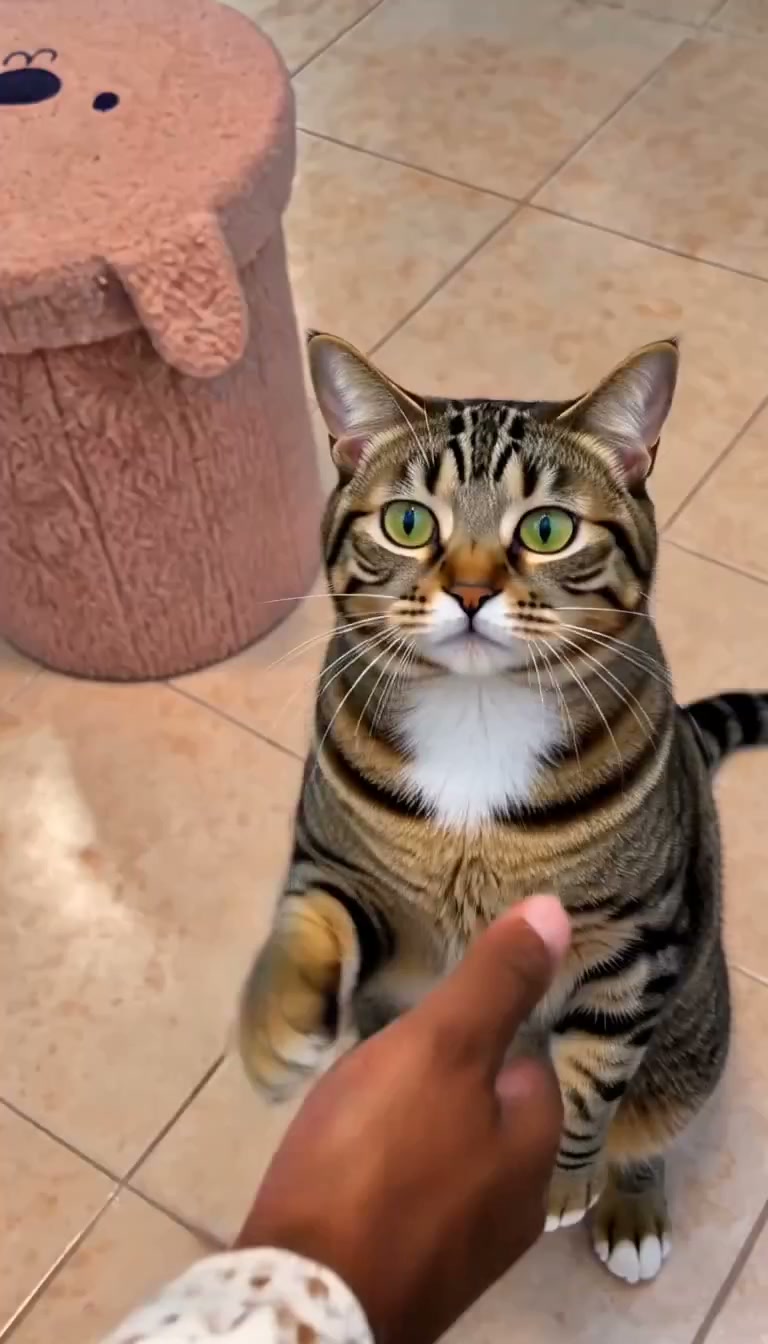
Actual Both photos output at 8.6 seconds: the closing handshake gives the story its final beat.
The approved recipe examples include native generated sound. Each new take still deserves its own review. If a task is confirmed failed, its video allowance is returned; that is different from a cash refund for a purchase. See the refund policy for purchase questions.
Step 6: download and give it a terrific caption
Open the completed work in your personal library, play it and download the video. Save the original before editing. Add your caption in your preferred editor or social app; CatClapping generates the story rather than operating a built-in caption timeline.
Keep the joke concise. “The committee approves my second breakfast” gives the clap an immediate reason to exist. For more ideas, use our original caption collection. If you want an exact 9:16 posting canvas, follow the portrait publishing guide.
Your first clip, planned in one minute
Choose Pet photo, select a clear image of your cat, and decide what the applause means. A tiny achievement, an unnecessary celebration or a gloriously lazy decision all fit the reaction beautifully. Prepare that simple idea, review the cast, and generate the full story.
CatClapping is a superb way to turn an ordinary pet photo into a personal comic moment. The focused sequence does the heavy lifting; your cat and your caption supply the personality. Start your story.